
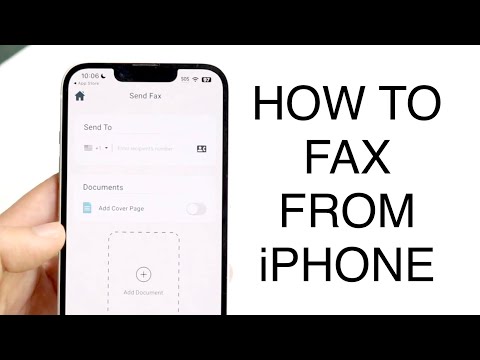
The Best Way to Fax from iPhone – A Complete Practical Guide
Why Fax Still Matters in 2024
Even in a world dominated by email and cloud collaboration, fax remains a legal and trusted channel for many industries. Health care providers, legal firms, and real‑estate businesses often require a faxed signature to meet compliance standards. For users in the United States, the ability to send a fax directly from an iPhone can eliminate trips to a print‑shop or office, saving both time and money.
Understanding the continued relevance of fax helps you decide whether investing in a mobile solution aligns with your business needs. If you regularly exchange contracts, medical records, or government forms, having a reliable fax method on your iPhone can become a core part of your workflow.
How iPhone Faxing Works – The Basics
Modern fax apps turn your iPhone into a virtual fax machine. They use your cellular or Wi‑Fi connection to upload a scanned document to a secure server, which then sends the data over the public telephone network to the destination fax number. The recipient’s fax machine receives the document just like any traditional fax.
Most solutions also support inbound faxing: incoming pages are converted into PDFs and delivered to your email inbox or a secure app dashboard. This two‑way capability ensures you can both send and receive faxes without any physical hardware.
Top Apps and Services for Faxing from iPhone
Several reputable services specialize in faxing from mobile devices. While each offers a slightly different feature set, they share common capabilities such as document scanning, cloud storage integration, and receipt confirmation.
Feature Comparison
| Service | Key Features | Pricing Model | Security & Compliance |
|---|---|---|---|
| eFax | Unlimited inbound fax, mobile scanning, email to fax | Monthly plans starting at $16.95 | 256‑bit encryption, HIPAA‑compatible |
| Fax.Plus | Pay‑as‑you‑go, API access, integration with Google Drive | Pay‑per‑page or $4.99/month for 100 pages | TLS encryption, GDPR‑ready |
| MyFax | Dedicated fax number, digital signature support, iOS app | Flat $7.99/month for 100 outgoing pages | SSL encryption, audited data centers |
Setting Up Your First Fax on an iPhone – Step‑by‑Step
Getting started is straightforward. Follow these steps to ensure a smooth onboarding experience:
- Download your chosen fax app from the App Store.
- Create an account and verify your email address.
- Choose a fax number or use a pay‑per‑page plan, depending on your anticipated volume.
- Enable access to your iPhone’s camera and files for easy document scanning.
- Run a test fax to a known number and confirm receipt via the app’s dashboard.
Most apps include a quick‑start guide inside the UI, but completing these manual steps guarantees you understand the workflow before handling sensitive documents.
Pricing Models and Cost Considerations
Understanding pricing is essential to avoid surprise fees. Most providers offer either a subscription model with a bundle of pages or a pay‑as‑you‑go structure that charges per fax. Consider your average monthly fax volume when selecting a plan.
Additional cost factors may include:
- International fax rates if you need to send documents abroad.
- Extra charges for premium features such as digital signatures or API access.
- Potential overage fees when you exceed the page limit in a subscription plan.
Security, Compliance, and Reliability
When faxing confidential information—such as patient records or legal contracts—security and compliance are non‑negotiable. Reputable fax services use encrypted transmission (TLS/SSL) and store documents in secure data centers that meet industry standards.
Reliability is measured by successful delivery rates and uptime of the service’s servers. Look for providers that publish service level agreements (SLAs) offering at least 99.9% uptime, and consider whether they retain fax logs for audit trails.
Real‑World Use Cases and When to Choose Fax
Here are common scenarios where the best way to fax from iPhone becomes a practical advantage:
- Healthcare practitioners needing to send patient referrals while on rounds.
- Real‑estate agents delivering signed contracts to title companies during property tours.
- Small business owners filing tax forms with the IRS that still require fax submission.
In each case, the ability to scan a document with your iPhone camera, press send, and receive an instant confirmation streamlines the workflow.
Support and Ongoing Management
Reliable support channels are crucial, especially when dealing with time‑sensitive documents. Most fax services provide email support, live chat, and an extensive knowledge base. Some also offer phone support for enterprise customers.
Regularly review your usage reports in the app’s dashboard. Monitoring delivery success, page consumption, and any failed faxes helps you maintain efficiency and adjust your plan as needed.
Making the Decision – Which Method Is Best for You?
Choosing the optimal solution depends on three factors: volume, security requirements, and budget. If you fax daily and need a dedicated number, a subscription plan from eFax or MyFax may be best. For occasional users, Fax.Plus’s pay‑as‑you‑go option offers flexibility without a monthly commitment.
Ultimately, the best way to fax from iPhone is the one that integrates seamlessly with your existing workflow, provides the necessary security level, and fits your cost structure. If you’re ready to explore options, visit the best way to fax from iphone and start a free trial today.